

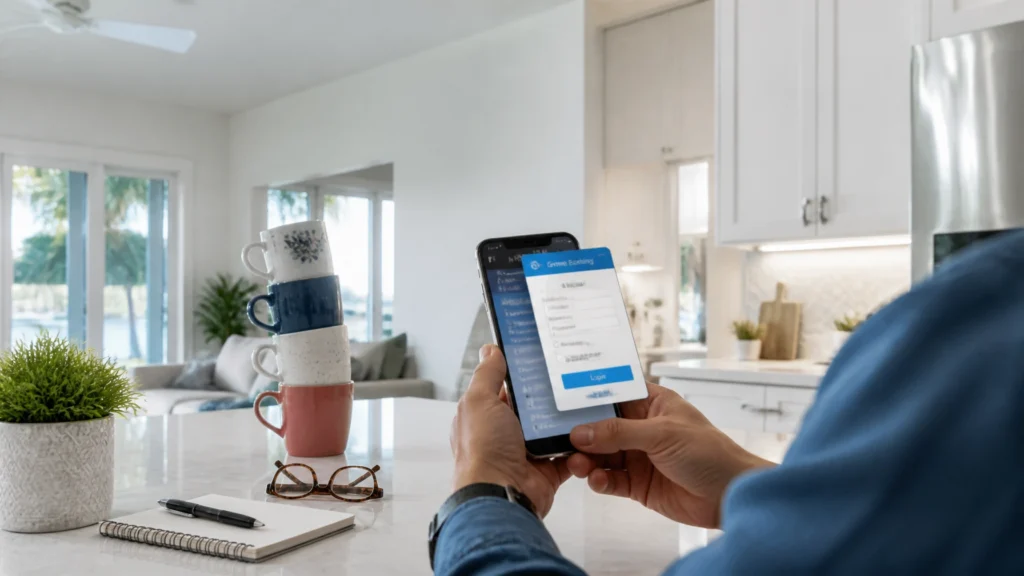
At FindASpy headquarters, Tracer’s morning coffee routine has become a structural engineering problem.
Someone stacked the office mug collection into a tower beside the dispatch desk. The bottom mug says “Monday,” the middle mug says “Need More Coffee,” and the top mug is balanced at an angle that makes everyone walk past it slowly.
Tracer reaches for his pour-over. The tower leans.
He catches it with one hand, saves six mugs, and says, “Good news. The coffee is secure. The bad news is the mugs have formed a hostile network.”
Then his Android phone lights up.
It is a normal weekday morning. He opens his banking app to check a deposit. The familiar icon launches. The colors look right. The login page looks right.
But the screen flashes once.
The username field sits a few pixels lower than usual. The app asks for his password, PIN, and a one-time verification code in one continuous sequence. A text message with the code arrives, then disappears before he reads it.
Tracer closes the app.
That pause is the difference between a routine login and a serious breach.
New Android banking malware is targeting the moment people trust most: opening a legitimate financial application.
Researchers have documented Rokarolla, an Android banking trojan that targets more than 200 banking and cryptocurrency applications, with research identifying 217 targeted apps. Other malware families, including GoldDigger and OverlayPhantom, use related overlay techniques.
The method is simple to understand.
The criminal first gets malware onto the phone. The delivery method is usually a fake application package, also called an APK, downloaded from a website or link instead of an official app store. The fake app presents itself as a security tool, a PDF reader, a browser update, or another useful program.
After installation, it requests powerful permissions. One of the most important is Android Accessibility access.
Accessibility services are legitimate tools designed to help people interact with their devices. They support functions such as screen reading, enhanced controls, and alternative navigation. When criminals obtain that access, the same capability becomes a device-wide surveillance channel.
The malware watches for a banking or cryptocurrency app to open. When it detects the target app, it paints an identical login screen over the real one.
The legitimate app is still open underneath.
That is why the attack is so convincing.
You type your username into what looks like your bank’s login page. You type your password. You enter your PIN. You provide the MFA code that the bank sent to prove your identity.
The criminal receives the information.
Some variants also record screen activity, read text messages and notifications, capture lock-screen PINs or patterns, manipulate phone calls, hide their own icons, and interfere with security alerts. Once the malware has device access, criminals can use those capabilities to move quickly before the account holder recognizes the problem.
According to Malwarebytes’ reporting on Rokarolla, the malware is distributed through rogue websites and sideloaded applications. Zimperium researchers described extensive device takeover capabilities, including overlay-based credential theft and abuse of Accessibility services.
This is not a fake bank website that you visit by accident.
It is a fake screen placed over the real banking app.

This threat does not require a careless person. It requires a busy moment.
A retiree receives a text claiming that a security update is required. A parent clicks a link while managing school schedules and work messages. A business owner downloads a PDF viewer to open an invoice. A family member sees an alert that says the phone is unprotected and installs the recommended “security” app.
The app then asks for Accessibility access.
The request looks technical. The explanation sounds urgent. The person wants the problem fixed, so they approve the permission and move on.
Working families are especially exposed because their phones combine banking, email, work accounts, authentication codes, health portals, payment wallets, and private conversations. One compromised device becomes a central access point for the household and the business.
Older adults also face a particular challenge: many have accumulated accounts over several years and use their phones for services that once required a desktop computer or a paper form. A familiar app icon creates confidence. A familiar bank name creates trust.
Criminals exploit that trust by making the fake screen look ordinary.
Overlay malware is designed to keep the victim moving. Your strongest defense is to stop when the experience changes.
Watch for these warning signs:
One unusual sign does not prove malware. Several signs together demand a careful response.
Use Google Play for Android applications. Do not install a banking app from an email, text message, social media post, pop-up, or search advertisement.
Never manually install an app claiming to be Google Play Protect, a system update, or a bank security component. System security tools do not require a random website download.
“Sideloading” means installing an app from a file or third-party source instead of an official app store. For banking devices, avoid it.
Android includes settings that allow specific apps, such as a browser or file manager, to install unknown applications. Review those settings and turn them off.
The exact menu names vary by device. Search Android Settings for Install unknown apps. Disable the permission for browsers, messaging apps, file managers, and any other application that does not need it.
Open Android Settings and review:
Remove or disable anything you do not recognize. Treat an Accessibility request as a major warning when the app is not clearly an assistive technology.
A flashlight, PDF reader, video player, cleaner, or security-themed app has no ordinary reason to control the entire screen.

Use biometric login where your bank supports it. Keep Android, banking apps, and Google Play system updates current. Enable your bank’s transaction alerts.
Biometrics help reduce the amount of typing, but they do not replace device security. A compromised phone can interfere with the user interface around authentication. Use a reputable mobile security application with real-time web and malware protection, and pay attention to its warnings.
For high-value accounts, ask the financial institution about stronger options than SMS codes, such as an authenticator app, hardware security key, or bank-approved push authentication.
If you entered banking information into a suspicious screen, stop using the phone for financial activity.
Do not use the possibly compromised phone to search for removal instructions, contact the attacker, or approve additional security prompts.
FindASpy provides cyber consultation and digital breach support, including spyware and unauthorized-access concerns. Patricia is available at 321-342-0040 for questions about the appropriate next step. You can also review the company’s services, about page, and security products.
This week, Tracer’s Pick is a practical mobile privacy and security resource selected to help one community member review a device with greater confidence. Participation details and eligibility requirements are provided through the official FindASpy channel.
No purchase is required, and the giveaway is not a promise of a specific product or service. Follow the posted instructions and verify that any message about the giveaway comes from FindASpy before responding.
This article is provided for general education and awareness. Malware names, capabilities, Android settings, banking procedures, and security recommendations change over time. FindASpy does not access your accounts, guarantee that a device is clean, or replace your bank, mobile carrier, licensed cybersecurity professional, or law enforcement agency.
Do not attempt risky removal procedures if doing so could destroy evidence or place you in danger. If you believe money was stolen, contact your financial institution immediately. Use all products and services responsibly and in compliance with applicable law.
Which State are you reading from?
Have you ever opened a familiar app and noticed that the screen looked different? Did a phone update, security alert, or unexpected permission request make you stop and investigate?
What is your preferred mobile protection habit: biometric login, transaction alerts, an authenticator app, regular permission checks, or something else?
Tracer reads all posts. Share your experience with the community, and help create a trusted space where awareness, knowledge, and protection work together.
Have you found a hidden gadget, suspicious device, or unusual piece of technology? Upload your own find by clicking here.
A real banking app does not guarantee a real login screen. Check what is installed on the phone, what permissions it holds, and what the screen is asking you to provide.
Today, review your Android phone’s Accessibility, Notification access, and Install unknown apps settings. Remove anything unfamiliar. Then confirm that your bank’s transaction alerts are active.
The next threat does not need to steal your password quietly. It starts with a message that sounds personal, urgent, and impossible to ignore.
And if you discover a hidden gadget or suspicious device while checking your trusted spaces, upload it for the community by clicking here.
Your vote helps determine FindASpy Insider’s Readers’ Top Picks. One rating is allowed per reader for each article.
Today’s Coffee Conversation
Tracer shares cybersecurity stories, scam alerts, privacy tips, and investigative insights. Pull up a chair, share your experience, and help shape tomorrow’s discussion.