

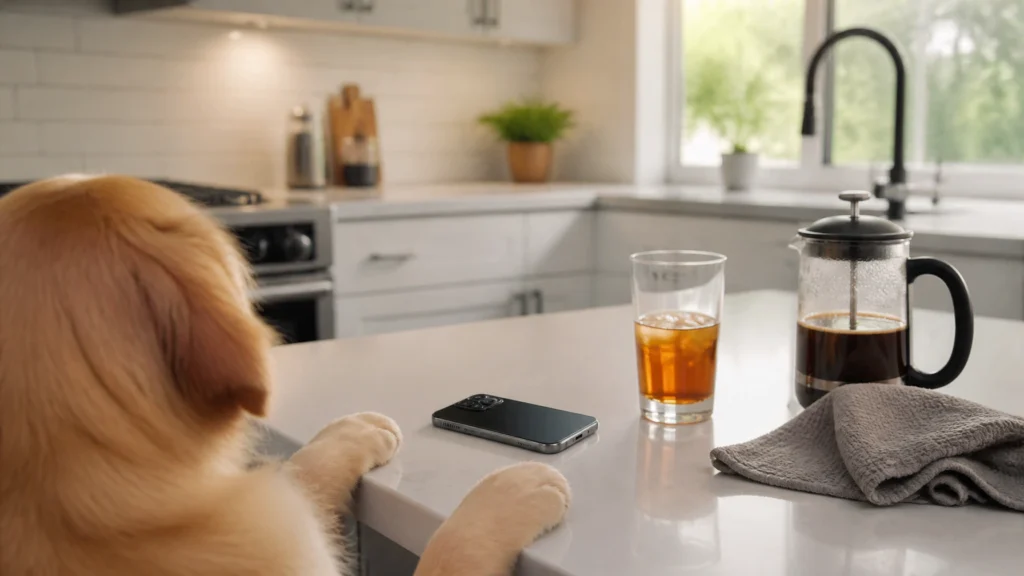
At FindASpy headquarters, Tracer was enjoying a fresh French press when his big, lovable dog launched a one-dog mission for the kitchen counter.
The target was a biscuit.
The collateral damage was Tracer’s iPhone.
The phone bounced once, slid across the counter, and landed directly in a full glass of sweet tea. The screen went dark. Permanently.
“Captain Waffles,” Tracer said, looking at the dog, “you have defeated technology with carbohydrates.”
With a brand-new phone in hand, Tracer began setting everything up again. Then he paused.
“Since I’m reconfiguring security on mine, why not show you how to do yours?”
Whether your phone is new or several years old, this guide will walk you through a practical lockdown. No technical background is required.
Important scam and safety note: Apple, Google, your bank, and your mobile carrier do not need your screen passcode or one-time verification code. Never share those details with someone who calls, texts, or emails you unexpectedly. If a message tells you to install an app, click a link, or “verify” your account immediately, stop and independently contact the company through its official website or phone number.
Most phones arrive convenient first, private second. The default settings make setup easy, but some also share more location, usage, advertising, or account information than you may want.
We are going to work in this order:
The menu names may vary slightly by phone model and operating-system version. If a setting has moved, use the Settings search bar and type the feature name.
An operating-system update is a software repair from Apple, Google, or the phone manufacturer. Updates often fix known security weaknesses that criminals already understand.
A new phone can still contain an older version of the operating system, so update it before adding banking apps, email accounts, or sensitive information.
Go to:
Settings > General > Software Update
Install any available update. You may need to connect to Wi-Fi and charge the phone first.
Then update your apps:
App Store > your profile picture > App Updates > Update All
You can also review automatic updates under:
Settings > Apps > App Store > App Updates
On most Android phones, go to:
Settings > System > Software update
On Samsung Galaxy phones, go to:
Settings > Software update > Download and install
Then update your apps:
Google Play Store > profile picture > Manage apps & device > Update all
The lock screen is the barrier that appears before someone can use your phone. It protects your messages, photos, email, saved passwords, banking apps, and personal conversations.
Go to:
Settings > Face ID & Passcode
or
Settings > Touch ID & Passcode
Choose Turn Passcode On or Change Passcode. Tap Passcode Options, then choose Custom Alphanumeric Code.
An alphanumeric code uses both letters and numbers. It is stronger than a short numerical code. Choose a long passphrase that does not use your birthday, address, pet’s name, or another fact someone could learn from social media.
Face ID or Touch ID is convenient, but your passcode is the real master key. Never share it.
On the same screen, turn on Stolen Device Protection. This feature adds biometric requirements and, for certain sensitive changes, a security delay. It helps stop someone who knows your passcode from changing your Apple Account password or disabling Find My.
Apple explains this feature in its official Stolen Device Protection guide.
Also under Settings > Privacy & Security, review Lockdown Mode.
Lockdown Mode is Apple’s extreme protection setting for people who may be targeted by sophisticated spyware or state-level attackers. When it is on, it deliberately blocks many normal phone functions to stop attacks. Most attachments and link previews in Messages are blocked. Most web technologies are disabled, which means some websites load slowly or do not work correctly. Incoming FaceTime calls from people you have never called are blocked. Connecting the phone to a computer or accessory also requires unlocking the phone first.
To find it, go to:
Settings > Privacy & Security > Lockdown Mode > Turn On Lockdown Mode
Then confirm with your passcode.
Most ordinary users do not need Lockdown Mode every day because it trades away convenience for extreme safety. But if you believe you are being targeted by spyware, a stalker with technical skills, or a sophisticated attacker, it is worth considering.
On Android, the closest equivalent is not one single switch. Instead, Google offers Advanced Protection for high-risk Google accounts:
Google Account > Security > Advanced Protection
That works alongside the Theft Protection tools already covered later in this guide. In short, Lockdown Mode makes sense for high-risk iPhone users, and Advanced Protection makes sense for high-risk Google accounts. Everyday users can usually skip both unless they have a specific reason for extra-hard protection.
Go to:
Settings > Security & privacy > Device unlock
or
Settings > Security & privacy > Screen lock
Choose Password for the strongest option, or use a long PIN of more than six digits. Avoid simple patterns and repeated numbers.
Fingerprint or face unlocking is useful, but do not treat it as a replacement for a strong screen lock. The PIN or password is still important.
Your Apple Account or Google Account controls much more than email. It may protect your backups, photos, payment methods, contacts, app purchases, and location features.
Apple now uses the term Apple Account instead of Apple ID. Your existing Apple ID email address and password still work.
Go to:
Settings > your name > Sign-In & Security > Two-Factor Authentication
Two-factor authentication means a second step proves that you are really you. That step may be a code, a trusted device approval, or another approved method.
Make sure it is on. Add a trusted phone number and consider adding a recovery contact.
Your Apple Account password should be:
This password guards iCloud photos, messages, backups, payment details, and more. For instructions on changing it, see Apple’s official account-password guide.
Also consider setting a separate Screen Time passcode:
Settings > Screen Time > Lock Screen Time Settings
This creates another barrier around certain account and content settings.
Turn on Find My:
Settings > your name > Find My > Find My iPhone
Turn on Find My iPhone, Find My network, and Send Last Location. These features help you locate or protect the phone if it is lost or stolen.
Go to:
Settings > Google > Manage your Google Account > Security > 2-Step Verification
Turn on 2-Step Verification and add recovery options, including a recovery phone number and recovery email address.
Your Google password protects Gmail, Android backups, Google Photos, Google Pay, and often the password-reset process for other accounts. Use a long, unique password and store it in a password manager.
Turn on Find My Device:
Settings > Security & privacy > Find My Device
The exact location may differ by manufacturer. Find My Device helps you locate, lock, or erase a lost Android phone.
A password manager is an encrypted vault that creates and remembers strong, unique passwords for your accounts. You only need to remember one master password.
On iPhone, use the built-in Passwords app or iCloud Keychain. Depending on your software version, find it under:
Settings > your name > iCloud > Passwords & Keychain
Allow it to suggest strong passwords when you create new accounts.
On Android, use Google Password Manager through:
Settings > Google > Password Manager
It can suggest and save passwords in Chrome and compatible apps.
Never reuse a password. If one website suffers a breach, a unique password prevents criminals from using that same password everywhere else.
When a website offers a passkey, consider using it. A passkey is a passwordless login that uses your face, fingerprint, or device unlock instead of a typed password.
Optional password managers that work across iPhone and Android include Bitwarden, 1Password, NordPass, and Proton Pass. Review the current pricing and features before choosing one.
Go to:
Settings > Privacy & Security > Tracking
Turn off Allow Apps to Request to Track. This limits an app’s ability to follow your activity across other apps and websites for advertising.
Next review location access:
Settings > Privacy & Security > Location Services
Set most apps to While Using or Never. An ordinary flashlight app does not need your location.
At the bottom, review System Services > Significant Locations. Turn it off if you do not want the phone remembering places you frequently visit.
For analytics, go to:
Settings > Privacy & Security > Analytics & Improvements
Turn off sharing options you do not want to provide.
For Mail, turn on Protect Mail Activity. This limits the ability of email senders to see when you open messages and helps hide your IP address.
In Safari, turn on:
Go to:
Settings > Security & privacy > Privacy > Permission manager
Permissions are requests for access to your camera, microphone, contacts, files, or location. Review each category and deny access that an app does not need.
Then review:
Settings > Location
Set apps to While using the app or Ask every time where available.
To reduce advertising tracking, look under:
Settings > Privacy > Ads
Choose Delete advertising ID if the option is available.
On Samsung phones, review:
Settings > Connections > Wi-Fi > Intelligent Wi-Fi
Turn off automatic switching or intelligent features if you do not want the phone connecting automatically to saved networks.
Also review the radios and connections you leave running when you do not need them.
These features are useful, but if you leave them on all the time, they can expose the phone to unnecessary connections, drain battery, or make it easier for the phone to interact with nearby devices and networks you did not intend to use.
Bluetooth is a short-range radio that lets devices like earbuds, speakers, keyboards, and car stereos connect to the phone. Leaving it on lets nearby devices see and sometimes connect to the phone, and criminals use cheap tools to send unsolicited messages or probe nearby Bluetooth devices.
Turn Bluetooth off when you are not using it.
On iPhone:
Swipe down from the top-right corner > Control Center > tap the Bluetooth icon
or
Settings > Bluetooth > Off
On Android:
Swipe down twice from the top > Quick Settings > tap the Bluetooth tile
or
Settings > Connections > Bluetooth > Off
Wi-Fi connects your phone to wireless internet networks. When you are away from home, turn Wi-Fi off if you do not need it so the phone does not automatically connect to unfamiliar networks.
On iPhone:
Swipe down from the top-right corner > Control Center > tap the Wi-Fi icon
Important note: on iPhone, Control Center only disconnects Wi-Fi until tomorrow. To fully turn it off, go to:
Settings > Wi-Fi > Off
On Android:
Swipe down twice from the top > Quick Settings > tap the Wi-Fi tile
or
Settings > Connections > Wi-Fi > Off
Airplane Mode turns off all radios at once, including cellular, Wi-Fi, and Bluetooth. It is useful on a plane, during troubleshooting, or anytime you want total radio silence with one switch.
On iPhone or Android, use:
Control Center or Quick Settings > Airplane Mode
or
Settings > Airplane Mode
NFC stands for near-field communication. It is the chip that lets the phone make contactless payments and share data when tapped against another device. It only works within a few inches, but if you want to be extra careful that a payment terminal or thief with a reader cannot tap your phone, turn it off when you are not paying.
On iPhone, there is no simple NFC off switch, so the safer habit is to keep the phone locked when not in use and consider a card sleeve for payment cards.
On many Android phones, go to:
Settings > Connections > NFC and contactless payments
You may also be able to turn off contactless payments inside your wallet app.
Mobile data is the phone’s internet connection through your cellular carrier. Turning it off while you are on Wi-Fi helps stop apps from using cellular data in the background.
On iPhone:
Settings > Cellular > Cellular Data > Off
On Android:
Settings > Connections > Data usage > Mobile data > Off
Some phones also offer a setting to block 2G under:
Settings > Connections > Mobile networks
2G is an old cellular technology with weaker security. Disable it where your phone and carrier provide the option.
On iPhone, consider Advanced Data Protection for iCloud:
Settings > your name > iCloud > Advanced Data Protection
This encrypts more iCloud information end to end, meaning only your trusted devices and recovery methods can unlock it. Set up a recovery contact or recovery key first. If you lose both your account access and recovery method, Apple may not be able to recover that protected data.
On Android, look for:
Settings > Google > All services > Theft protection
Turn on available features such as:
Also verify Google Play Protect:
Google Play Store > profile picture > Play Protect > Settings
Keep Scan apps with Play Protect turned on. Google says Play Protect checks apps for harmful behavior and may warn you, disable an app, or remove it. Read more in Google’s official Play Protect guidance.
Only install apps from the official Apple App Store or Google Play Store. Check the developer name. Never install an app because a pop-up, unexpected caller, or text message tells you to.
Useful optional layers include:
Traditional antivirus is generally unnecessary on iPhone because of Apple’s app restrictions and built-in protections.
If you believe your phone is already compromised, do not keep experimenting with suspicious apps. FindASpy’s Guardian Angel spyware and breach removal service can provide a deeper review. Call 321-342-0040 for assistance.
Tracer finished his new-phone setup in about an hour. Captain Waffles supervised from a safe distance, away from all beverages.
Before you put your phone back in your pocket:
You can follow this checklist on an old phone, too. It is never too late to strengthen your privacy.
Before we wrap up, there is one more set of tools worth turning on. They do double duty: they build healthier phone habits and quietly lock the front door against anyone who picks up your unlocked phone.
These built-in tools show you how much you use your phone, help limit distracting apps, and add another layer of protection around important settings.
Go to:
Settings > Screen Time > Turn On Screen Time > This is My iPhone
Then set a separate Screen Time passcode:
Settings > Screen Time > Use Screen Time Passcode
This is a different 4-digit code from your regular screen passcode. It stops anyone, including a thief or a curious child, from changing your Screen Time settings without that extra code.
Once that is set, review these options:
Now open the most overlooked security feature in this section:
Settings > Screen Time > Content & Privacy Restrictions
Turn it On, make sure your Screen Time passcode is set, and use these controls to:
For app installs specifically, go to:
Settings > Screen Time > Content & Privacy Restrictions > iTunes & App Store Purchases > Installing Apps > Don't Allow
This is the hidden gem most people never find. It is basically a parental control that you can use on your own phone. Even if someone picks up your unlocked phone, they cannot install apps, delete apps, or change your privacy settings without that separate Screen Time passcode.
Go to:
Settings > Digital Wellbeing & parental controls
Inside, you will usually find:
For the Android security equivalent, also check your regular phone settings for app install restrictions. The exact path varies by phone maker, but look under:
Settings > Security & privacy > More security & privacy
or
Settings > Apps > Special app access
On Samsung phones, similar options may also appear under app-management settings. Use those restrictions along with the Permission manager already covered earlier to stop apps from reaching sensitive data they do not need.
A secure phone is not created by one magic app. It is built through layers:
Awareness helps you recognize unusual requests.
Knowledge helps you find the right settings.
Protection makes the phone harder to misuse if it is lost, stolen, or targeted.
Before your next cup of coffee:
What State are you reading from? Are you securing an iPhone or an Android phone?
Which step surprised you most on your own device: location tracking, app permissions, account recovery, or the power of your main Apple or Google password?
Have you ever found an app that had access to something it did not need? Tracer reads all posts.
If you have found a hidden gadget in your home, vehicle, office, or another trusted space, upload it to our Community Finds so others can learn from it.
Next time, Tracer will examine the small clues that reveal when a familiar account, device, or service has quietly changed its behavior.
These steps reduce risk, but no phone can be guaranteed absolutely secure or unhackable. Settings and menu names change between operating-system versions, manufacturers, and regions. This article is educational and does not replace professional advice. If you are in immediate danger, if a crime is in progress, or if your safety is at risk, stop reading and call 911.
If you are facing stalking, domestic abuse, targeted surveillance, suspected spyware, account takeover, or another specific threat, avoid alerting a suspected attacker through sudden changes that could increase danger. Contact a licensed security or technology professional for guidance. FindASpy can provide a deeper privacy and breach review.
Written by the FindASpy.com team in the field-tested, practical spirit of Sterling Reed, “Tracer.”
Your vote helps determine FindASpy Insider’s Readers’ Top Picks. One rating is allowed per reader for each article.
1 reader rating
Complete the form below and a member of our team will contact you to discuss your video security needs.
Today’s Coffee Conversation
Tracer shares cybersecurity stories, scam alerts, privacy tips, and investigative insights. Pull up a chair, share your experience, and help shape tomorrow’s discussion.