

Coffee Time with Tracer: Wednesday, August 19, 2026
Category: Morning Coffee with Tracer
The espresso machine hissed from the corner of FindASpy headquarters.
Tracer ignored it.
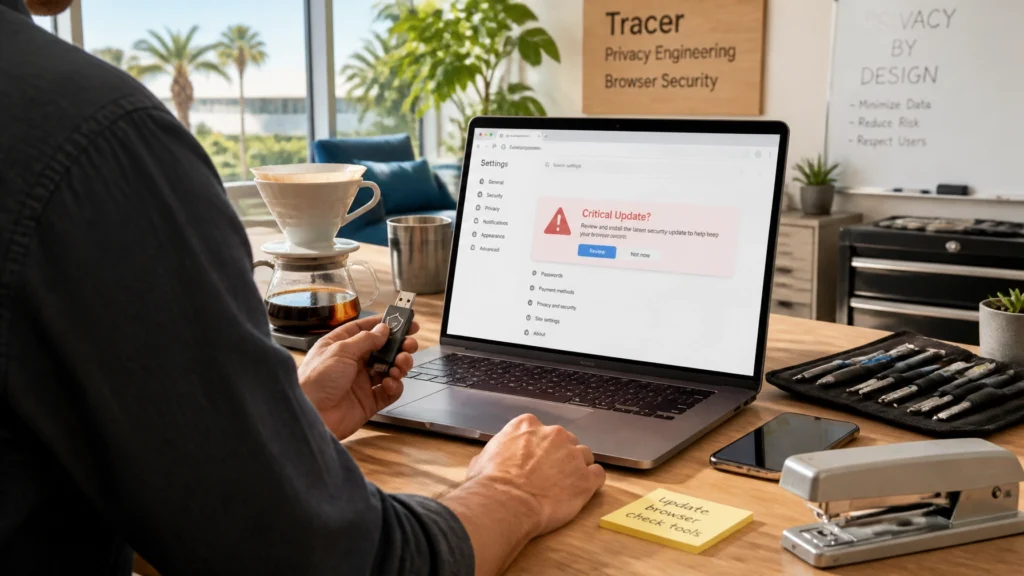
His attention was fixed on the office stapler, which had completely jammed. He held it in one hand and tried to pry it open with the corner of an old credit card. Around him, monitors glowed with browser settings pages, sticky notes, and half-finished security checklists. A fresh pour-over coffee cooled beside the keyboard.
Then a notification appeared on one of the screens.
“Critical Chrome Update Required.”
Tracer stopped working on the stapler.
“Now that,” he said, “is a much bigger problem than a missing staple.”
Fake browser-update scams are not new. The current wave is becoming more convincing because malicious or compromised browser extensions can help deliver the warning directly into pages you visit.
The extension may look harmless. It may promise a better shopping experience, a video downloader, a coupon finder, a PDF tool, or a productivity shortcut. It may have a professional-looking name and positive reviews.
Later, the extension may be purchased by a different operator. Its code may be quietly changed. Or it may begin loading instructions from a remote server.
That is when a familiar browser can become an unexpected delivery channel.
The fake banner may claim that Chrome, Brave, or Opera is outdated, unsafe, or infected. It may cover the entire page. It may use a countdown, alarming colors, or language designed to make you act before you think.
The “Update” button does not use the browser’s built-in update process. Instead, it may download a file such as:
Chrome_Update.vbsCriticalBrowserUpdate.exeA .vbs or .exe file is not automatically malicious. However, a browser update should not arrive from a random webpage as a downloadable script or executable. That is the critical distinction.
According to Google’s guidance on unwanted ads, pop-ups, and malware, suspicious update prompts should be ignored. Browser updates should be obtained through the browser’s official settings or the program’s official website.
A recent GovCERT.HK security alert also illustrates why timely browser patching matters. The alert recommends updating Chrome through its automatic update mechanism or the internal About Google Chrome page: not through a webpage demanding that you download a file.
A browser extension often has access to more than users realize.
Depending on its permissions, an extension may be able to read or modify information on websites. That can include page contents, form fields, shopping activity, and other browser data. A malicious extension may also redirect searches, inject advertisements, alter pages, or send browsing information to an outside party.
In some situations, an extension with excessive permissions can create additional risk for active login sessions. This does not mean every suspicious pop-up has stolen your session. It does mean you should take the event seriously, especially if you clicked the prompt, entered a password, or ran a downloaded file.
A stolen password can often be changed. A compromised session may allow someone to act as though they are already logged in. That is why awareness, knowledge, and protection must work together.
Tracer finally gave up on the stapler and placed it beside the coffee.
“First,” he said, “we identify what changed. Then we contain it. We do not reward the scam by clicking the button.”

If fake update messages appear repeatedly, an extension may be involved. Audit your extensions carefully.
Do not use a link inside the warning.
Type the browser’s settings address yourself or open the browser menu and find the extensions section. Review every installed extension. Do not limit your review to extensions you installed recently. A trusted extension can change ownership or behavior after an update.
Look for:
If you do not need an extension, remove it. Keeping fewer extensions reduces your attack surface.
Read what each extension can access.
Be cautious when a simple tool requests permission to read and change data on every website. There may be legitimate reasons for broad permissions, but you should understand and accept the risk.
If the extension’s purpose does not match its permissions, disable it while you investigate. Take screenshots of the extension name, publisher, permissions, and version before removing it if you may need those details for an incident report.
Review your browser’s extension update history when available. Compare the current version with your own records. Search the publisher’s official page: not the suspicious pop-up: for security notices or ownership changes.
Do not assume a high download count or positive rating proves that an extension is safe. Reviews can be manipulated. Popular tools can also become risky after a later update.
A legitimate browser update is initiated from the browser itself.
For Chrome, open the menu and go to:
Help → About Google Chrome
You can also enter the official internal settings address:
chrome://settings/help
The browser will check its current version and use its own update mechanism. If an update is needed, complete it there and relaunch the browser when prompted.
For Brave and Opera, use the browser’s own Settings → About or update section.
Do not trust a webpage that says:
If the browser’s internal About page says you are current, a website cannot override that fact with a flashing warning.

If you have not clicked anything, do not interact with the page.
.vbs, .exe, or ZIP files without opening them.If the pop-up returns after removing an extension, the device may have an unwanted program installed. Google recommends checking installed applications and resetting browser settings when unwanted changes continue.
Treat the device as potentially compromised.
Disconnect it from the internet if practical. Do not continue banking, shopping, or accessing workplace systems from that machine. Use a known-clean device to change important passwords, beginning with your primary email account. Enable multi-factor authentication wherever possible.
Contact your financial institution immediately if you entered payment details or notice suspicious activity.
On the affected computer:
Avoid deleting everything immediately if the device is connected to a business, legal, family, or stalking-related investigation. Screenshots, filenames, timestamps, and extension details may help establish what happened.
For discreet assistance with spyware concerns, device breaches, and privacy threats, review FindASpy’s services. Our team can help assess the situation and identify the appropriate next step.

This week, Tracer’s Pick is simple: a browser-extension audit before the next emergency appears.
Choose one device. Review every extension. Remove anything unnecessary. Confirm that your browser updates only through its built-in settings.
Then share what you found with the FindASpy community. Your experience may help another person recognize the same warning before clicking it.
For privacy protection products and counter-surveillance equipment, visit FindASpy’s product collection. To learn more about the people and mission behind the company, visit About Us.
Need to speak with Patricia? Call 321-342-0040 for assistance.
Disclaimer: This article provides general educational information. It is not a substitute for professional cybersecurity, legal, medical, or law-enforcement advice. Browser menus and security tools may vary by device, operating system, and software version. If you believe a device has been compromised, avoid making sensitive changes from that device and consult a qualified cybersecurity professional. If you are in immediate danger, contact local emergency services.
Have you ever seen a fake browser-update warning? Did it appear on a computer, phone, work device, or family member’s laptop?
What is the most unusual browser extension you have found installed? Do you regularly audit extensions, or do you usually wait until something begins acting strangely?
Tell us your thoughts and the State you are from. Tracer reads all posts, and your experience could help someone else stay one step ahead.
Do you have a hidden gadget or suspicious device you want the community to examine? Upload it and share your own Community Find by clicking here.
Your vote helps determine FindASpy Insider’s Readers’ Top Picks. One rating is allowed per reader for each article.
Today’s Coffee Conversation
Tracer shares cybersecurity stories, scam alerts, privacy tips, and investigative insights. Pull up a chair, share your experience, and help shape tomorrow’s discussion.