

At FindASpy headquarters, the mini-fridge had become a science experiment.
A container of forgotten yogurt had developed a lid so swollen that Tracer placed it inside a clear evidence bag. A lemon in the door compartment had turned the color of old paperwork. The fridge hummed, clicked, and released one sharp odor every few seconds.
Tracer opened the door, took one step backward, and said, “That is not a lunch. That is a biological incident.”
Then his laptop displayed a different kind of threat.
The page looked familiar. The colors matched a cloud office platform. The logo looked correct. A padlock appeared beside a convincing web address. Then a message appeared:
Your session has expired. Verify your account to continue.
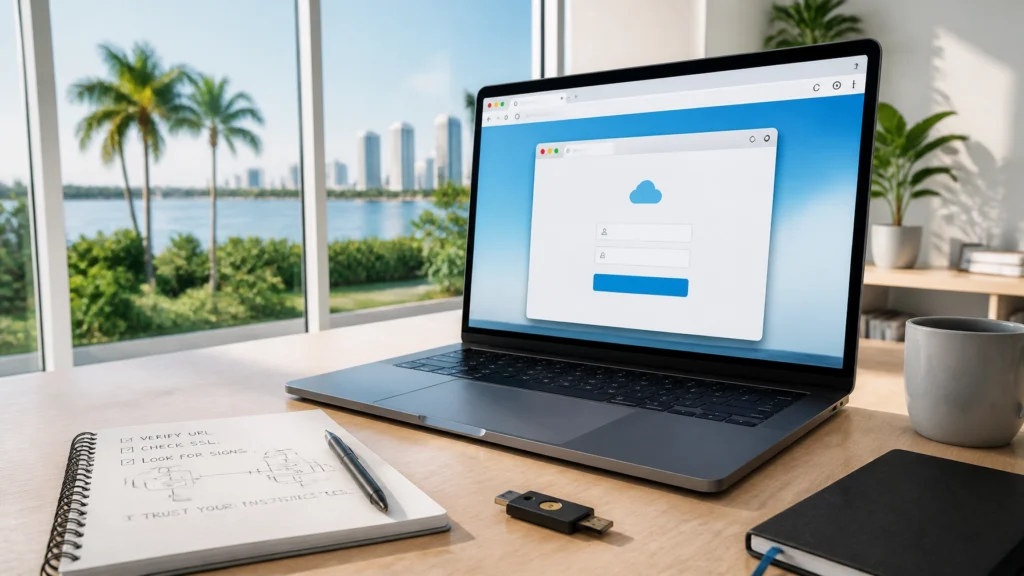
Tracer clicked the sign-in button. A login window appeared inside the webpage.
It had its own title bar. Its own close button. Its own address bar. Its own padlock.
Everything looked right.
But the address bar was not the browser’s address bar. It was part of the criminal’s webpage.
This attack is called Browser-in-the-Browser phishing, or BitB.
It is a web design trick used for credential theft. The criminal builds a malicious webpage that displays a fake login window inside the real browser tab. HTML, CSS, and JavaScript create the appearance of a separate browser window.
The criminal copies familiar visual details:
The imitation window is not controlled by the browser. It is controlled by the page.
The address bar inside the fake window is usually ordinary page content. It is text, an image, or a styled element designed to resemble a real browser toolbar. It is not the browser’s native address bar. The padlock is decorative. The controls are designed to create confidence.
When a victim types a username, password, or MFA code into the imitation window, the information goes directly to the attacker’s webpage.
The real browser address bar is still at the very top of the screen. It displays the actual domain where the malicious page is hosted. The fake address bar sits lower, inside the webpage, and only appears to be part of a new browser window.
Recent campaigns show why this technique deserves attention. In June 2026, Help Net Security reported on a Microsoft 365 phishing campaign that used fake browser authentication windows and spoofed OAuth addresses. In August 2026, CTM360 reported the RecruitTrap campaign, which used recruitment-themed phishing pages and BitB login traps aimed at Google and Facebook credentials.
The criminal does not need to break into the real website. The criminal needs to convince you that you are already looking at it.

Seniors and retirees are targeted because they often manage important accounts through familiar services. Working families are targeted because they move quickly between work, school, banking, medical, and personal accounts.
The trap works especially well when the victim has a routine:
Many people have been correctly taught to check the website address. That is good advice. But BitB phishing abuses that habit by placing a fake address bar directly in front of the victim.
“I checked the URL” is not enough if the person checked the wrong URL bar.
Working from home adds another layer of risk. A person may receive a shared file request, a human resources notice, a payroll message, or a meeting invitation while handling several tasks at once. A retiree may receive a message about a medical portal, tax document, delivery account, or family-shared subscription.
The page does not need to look suspicious. It needs to look routine.
Password reuse increases the damage. If the same password protects email, cloud storage, shopping, and financial accounts, a single captured login becomes a map to the rest of the household’s digital life.
Tracer did not trust the picture. He tested the behavior.
First, he tried to drag the login window beyond the edge of the webpage. It stopped at the page boundary.
A genuine browser popup opens as a separate window. It has a real operating-system frame and moves independently from the webpage. A BitB window is trapped inside the tab because it is part of the page.
Next, he tried to minimize and resize it. The buttons looked right, but they behaved like page controls. They did not act like the browser’s native controls.
Then he clicked inside the displayed address bar. The cursor did not behave like a normal address-bar cursor. The field did not accept a new web address.
He also tested his password manager. The manager did not autofill the stored credentials. That was a major warning. A reputable password manager typically checks the real domain before filling a login. It does not trust the address displayed by a fake window.
On some BitB pages, right-clicking the imitation window opens the webpage’s ordinary context menu instead of a separate browser-window menu. Zooming the page also provides a clue. A fake window built from page elements grows or shrinks with the webpage.
The warning signs are behavioral:
Do not enter credentials to “test” whether the page is real. The behavior test comes first.
A password manager is not a complete phishing shield, but it provides valuable information. If it normally fills your credentials on a service and suddenly refuses to fill them, stop.
Do not manually type the password simply because autofill failed. Confirm the real domain first.
A login window that appears inside a webpage is a warning signal. Close the tab.
Do not enter:
A legitimate-looking window is still untrusted when its controls and address bar are part of the page.
For banking, email, medical, tax, payroll, and cloud accounts, type the website address yourself or use a saved bookmark that you created from a verified source.
Do not rely on a link inside an unexpected email, text message, calendar invitation, or social-media message. If a message says your session expired, open a new tab and visit the service directly.
MFA is valuable protection. Use an authenticator app, passkey, or hardware security key when the service supports it.
However, MFA codes can be phished when a criminal operates a fake login flow in real time. Never approve an unexpected login request. Never read an MFA code to someone who calls you. Phishing-resistant options such as passkeys and FIDO2 security keys provide stronger protection because authentication is tied to the genuine website.
Install browser and operating-system updates from the official settings menus. Updates repair security weaknesses and improve defenses against malicious webpages.
For extra separation, use a dedicated browser profile or device for financial accounts. Keep that environment free from unnecessary extensions. Review browser extensions regularly and remove anything you do not recognize.

Act quickly.
From a known-good device or a website you opened independently, change the affected password. Do not reuse the old password anywhere else. Sign out of active sessions. Review recent account activity. Remove unfamiliar connected apps and revoke suspicious OAuth permissions.
If the account is used for work, contact your employer’s IT or security team immediately. If it is a financial account, call the institution using the number printed on your card or shown on an official statement.
Do not continue communicating with the person who sent the original message. Preserve the email, text, calendar invitation, webpage address, and approximate time of the interaction. Screenshots help document what happened.
If the device shows additional warning signs, or you believe the account and computer were both compromised, contact FindASpy for a discreet cyber consultation. Our team provides digital security guidance, spyware detection, breach consultations, and removal support through our professional services. You can also call Patricia at 321-342-0040.
FindASpy’s mission is practical protection. Learn more about the team on our About Us page, and review available privacy and counter-surveillance equipment through all products.
Tracer’s pick for this lesson is a password manager paired with phishing-resistant MFA, especially a passkey or hardware security key.
FindASpy occasionally highlights protective tools and community resources that support safer digital habits. Follow the site for future giveaways and featured picks. Availability, eligibility, and applicable terms always control.
A criminal message creates urgency. A fake session-expired notice creates routine. A copied logo creates comfort. Together, they push you toward one fast decision.
Stop.
Close the page. Open the official website yourself. Contact the organization through a trusted phone number or known account. Ask someone you trust to review the message before you share information.
If you are unsure whether your computer or phone was compromised, do not guess. Document what happened and seek qualified help.
This article is provided for general education and awareness. It is not legal, financial, medical, or professional cybersecurity advice, and it does not replace guidance from your bank, employer, law enforcement, or a qualified security professional. Do not access accounts, inspect devices, or collect evidence in a way that violates privacy laws, company policies, court orders, or another person’s rights. Any FindASpy product or service must be used lawfully, ethically, and with proper authorization. Review the applicable laws and responsible-use requirements before purchasing or using surveillance or security equipment.
Have you seen a “session expired” message that appeared immediately after clicking a document, calendar invitation, or CAPTCHA? Did the login window behave differently from a normal browser window?
Which State are you from? Do you use a password manager, passkeys, an authenticator app, or a dedicated browser for financial accounts?
Tracer reads all posts. Share what happened, what warning sign you noticed, and what helped you stop before entering information.
If you found a hidden gadget in your home, vehicle, workplace, or another lawful private space, upload it for the community to review by clicking here. Please remove personal information from photographs before submitting.
A padlock inside a webpage is not proof of a secure connection. A familiar logo is not proof of a genuine website. The address bar you checked must be the browser’s real address bar, not an imitation drawn inside the page.
The next time a login window appears, do not type first. Test it:
Tomorrow, Tracer looks at a “technical support” visit where the technician knows exactly what the victim’s computer is doing( because the technician started the attack.)
Your vote helps determine FindASpy Insider’s Readers’ Top Picks. One rating is allowed per reader for each article.
Today’s Coffee Conversation
Tracer shares cybersecurity stories, scam alerts, privacy tips, and investigative insights. Pull up a chair, share your experience, and help shape tomorrow’s discussion.