

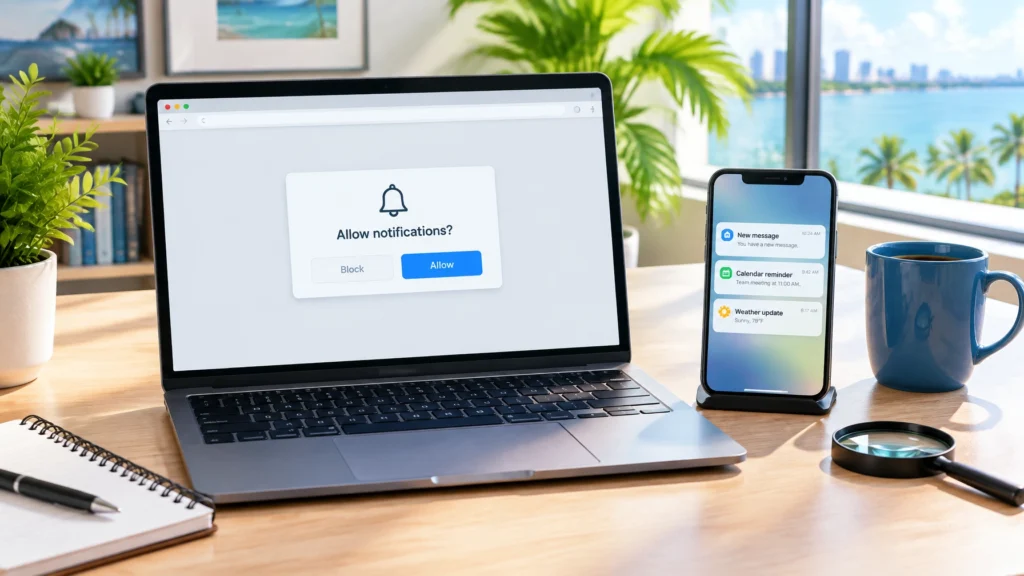
On Tuesday morning, October 27, 2026, Tracer arrived at headquarters, flipped on the lights, and headed straight for a dark roast French press that needed four quiet minutes to become useful. While the coffee settled, he checked the overnight alerts, glanced through Community Finds, and tapped through voicemail with the practiced expression of a man hoping nobody had described a browser problem as “the internet caught a virus again.”
That was when the office cat knocked one pen off Tracer’s desk.
Then another.
Then a third, with the calm confidence of a supervisor reviewing paperwork.
Tracer moved the remaining pens into a cup, lifted the cup, took a sip of the dark roast from the French press, declared the inspection complete, and opened his laptop. That was when a message from a Florida family arrived: “Click Allow to prove you are human.”
The family had clicked.
Now their computer was displaying fake virus warnings even when the original website was closed.
Disclaimer: The stories Tracer shares are based on real scams and security threats actively targeting our community. Names and specific scenarios are crafted to protect identities while keeping the tactics clear, because these attacks are a matter of when, not if. This article is guidance only and is not a substitute for emergency assistance, professional technical support, or legal advice. If you are in immediate danger, a crime is in progress, or your safety is at risk, stop reading and call 911.
The page looked familiar. It had a blurred background, a verification box, and language designed to create urgency:
The page did not need to break into the computer at that moment. It needed the visitor to approve a browser permission.
When you click Allow, you are usually granting that website permission to send browser notifications. A notification is a small message that appears outside the active browser tab. Depending on your device and settings, it may appear near the corner of your screen, in a notification center, or on a locked phone.
The result can look like a system warning:
The message may use familiar colors, logos, or wording. That does not make it genuine.

Clicking Allow does not automatically hand the website your passwords. It does not, by itself, turn on your camera, read your private files, or install software.
That honest distinction matters.
The permission creates a communication channel. The website can use that channel to push messages onto your screen. Those messages may continue after you leave the original page. They may appear while you are checking email, paying a bill, or helping a family member with an online account.
The danger comes from what happens next.
A poisoned notification usually contains a link. That link may send you to a fake antivirus page, a fake browser update, or another human-verification screen. The chain looks like this:
Notification → fake security alert → fake verification page → command or download
At the final stage, the victim may be told to:
That is the ClickFix-style portion of the operation. You can read the full run-command CAPTCHA article here. This article focuses on the permission trap that often gets people back to that dangerous step.
These campaigns are no longer limited to obviously suspicious websites.
Attackers place fake verification pages on compromised legitimate websites, malvertising networks, streaming pages, travel-booking pages, file-sharing services, and pages reached through misleading search ads. A site may look professional because the criminals did not build the entire site. They inserted a malicious script into a site people already trust.
Some campaigns imitate Cloudflare or Google verification screens. Others copy the appearance of media players, package delivery pages, antivirus warnings, or software-update notices.
This is why ClickFix-style activity is going industrial in 2026. The criminals are building repeatable delivery systems instead of relying on one simple pop-up.
A newer infrastructure detail sometimes associated with these campaigns is EtherHiding. In plain language, EtherHiding is a technique that stores parts of malicious instructions in blockchain transactions. A compromised website can retrieve those instructions and change what it displays without replacing every part of its own code.
Most readers do not need to understand the blockchain mechanics to stay safe. The practical lesson is simpler: a familiar website can be made to deliver a completely unfamiliar scam.
Two developments from October 2026 show how far this industrialization has gone.
The first is a new storage trick. Microsoft researchers documented a ClickFix operation that pre-loads its malware payload into the browser's cache, disguised as an ordinary image file, when a compromised page is first opened. Later, when the victim runs the copied command, it quietly retrieves that cached file and executes it. Because the file is already on the computer, Windows does not raise the usual download warning at the moment it runs. The command a person pastes looks shorter and simpler than it really is, which makes it easier to talk someone into pressing Enter.
The second is a campaign aimed at Floridians' favorite browser habit: seeing a Cloudflare-style check and assuming the site is safe. CERT-UA, Ukraine's national cybersecurity agency, reported more than one hundred compromised websites displaying fake Cloudflare verification pages that delivered a stealer program called LunexStealer. The fake check ran only for visitors arriving from search engines on Windows computers, then pressed the person to run a command that installed the malware. LunexStealer goes after saved passwords and browser sessions and can install a malicious browser extension that lets criminals control a browser from afar. The point Tracer wants readers to keep: the little verification box that succeeds can be as dangerous as the one that fails, because finishing the check is how the scam makes you feel safe.
The deception works because the request seems connected to something the person is already trying to do.
A senior may be attempting to watch a video, access a medical portal, or check a delivery. A working parent may be trying to book a hotel, download a form, or quickly open a streaming service between responsibilities.
The warning arrives at the worst possible moment: when attention is divided.
The fake alert also borrows authority. It may say “Chrome,” “Windows,” “McAfee,” “Cloudflare,” or “security center.” Many people reasonably assume that a message with a familiar name must have come from that company.
Tracer’s recognition point was simple:
A website does not need notification permission to prove that you are human.
A legitimate CAPTCHA may ask you to click a box, identify pictures, or complete a small visual challenge inside the page. It does not need permission to interrupt you later. It does not require a browser notification to play a video. It does not need you to run a command to confirm your identity.
Tracer uses a field habit he calls the Permission Rover. Instead of following the path provided by an alert, he independently roams through the browser’s settings and checks which sites have been granted access.
Here is how to revoke suspicious notification permissions.
On Android, open Chrome’s menu and go to Settings → Site settings → Notifications. You can block individual sites or disable website notifications entirely. Android’s system settings also let you manage notifications for the Chrome app.
On Android, review notification and site-permission controls in Edge’s settings. You can also open Android’s system settings, choose the Edge app, and adjust its notification access.
On iPhone and iPad, do not trust a webpage that tells you to approve an urgent notification. Review notification access through the device’s settings and the browser or website-app settings available on your current iOS version. If a notification is not useful, disable it.
On mobile browsers, Tracer recommends a simple habit: do not allow websites to send notifications at all unless you have a clear, specific reason.

Do not click Allow merely because a page says it is required for verification, video playback, downloads, or access to a package notice.
Ask: Why would this website need to interrupt me later?
If the answer is unclear, choose Block, close the tab, or leave the page.
A notification can resemble an operating-system message without being one. Do not call a phone number in the alert. Do not click its button. Do not enter payment information.
Open the alleged company’s official website by typing the address yourself or using a trusted bookmark.
A CAPTCHA that asks you to open Run, PowerShell, Command Prompt, or Terminal is a scam. A browser page telling you to paste code is not providing a normal verification step.
If you want the full technical warning, read the full run-command CAPTCHA article here.
Removing notification access stops that website from using the permission channel. Then clear the site’s browsing data if appropriate and close all related tabs.
If you clicked a notification and downloaded a file, do not open it. Delete it and run a trusted security scan.
Disconnect the affected device from the internet if practical. From a clean device, change important passwords and enable multi-factor authentication. Contact your workplace technology team if it is a business computer.
If you suspect spyware, unauthorized access, or a broader breach, review FindASpy’s professional services for cybersecurity consultation and breach-removal options.
Clicking Allow is serious, but it is not the same as confirming that malware is already installed.
A notification permission alone generally does not give the website direct access to your files, saved passwords, camera, or microphone. It does not automatically mean your computer has three viruses. It gives the site a way to send messages and lure you into the next action.
That is still worth stopping.
Tracer took another sip of the dark roast before making the point he repeats most often: permissions are not proof, and pop-ups are not authority.
The safest response is to kill the permission, ignore the alert, and independently verify any claim. Do not buy a subscription through a pop-up. Do not download an update from a notification. Do not follow a command copied from a webpage.
For additional privacy and security equipment, review the FindASpy product catalog, and always follow the applicable legal and responsible-use requirements.

Before lunch today, open the browser you use most and check whether any unfamiliar websites already have permission to send notifications. If you find one you do not recognize, block it and remove it.
Next, turn off future notification requests unless you truly need them. Most people lose nothing by making websites ask less and prove more.
Finally, pick one person in your family or workplace and give them Tracer’s plain rule: a real human-verification box stays inside the page. It does not need notification permission to follow you around later.
Tomorrow’s Hint: Tomorrow’s caller sounds like a serious buyer, ready to move today, with just one small condition before the deal closes.
If you want more field notes like this one, browse the Morning Coffee with Tracer archive.
Have you ever clicked Allow because a website said it was necessary to continue? Did the notifications appear immediately, or did they return later when the browser tab was closed?
Tell us what State you are from. Which notification scam looks most convincing to you: the fake virus warning, the expired subscription, the browser update, or the package delivery message? Do you allow browser notifications on your phone?
Tracer reads all posts.
If this turns into one of those “well, that got bigger than expected” mornings, call 321-342-0040. Patricia will answer and connect you with the right help without making you explain it to three different people first.
If you have found a hidden camera, tracker, recorder, or other suspicious gadget, share it with the community by clicking here.
Sterling Reed, known to readers as "Tracer," is a cybersecurity engineer, digital investigator, consumer cybersecurity contributor, and the founder of FindASpy.com in Clermont, Florida. He writes Coffee Time with Tracer to help readers stay one step ahead with practical, plain-language guidance built around awareness, knowledge, and protection.
Your vote helps determine FindASpy Insider’s Readers’ Top Picks. One rating is allowed per reader for each article.
Today’s Coffee Conversation
Tracer shares cybersecurity stories, scam alerts, privacy tips, and investigative insights. Pull up a chair, share your experience, and help shape tomorrow’s discussion.