

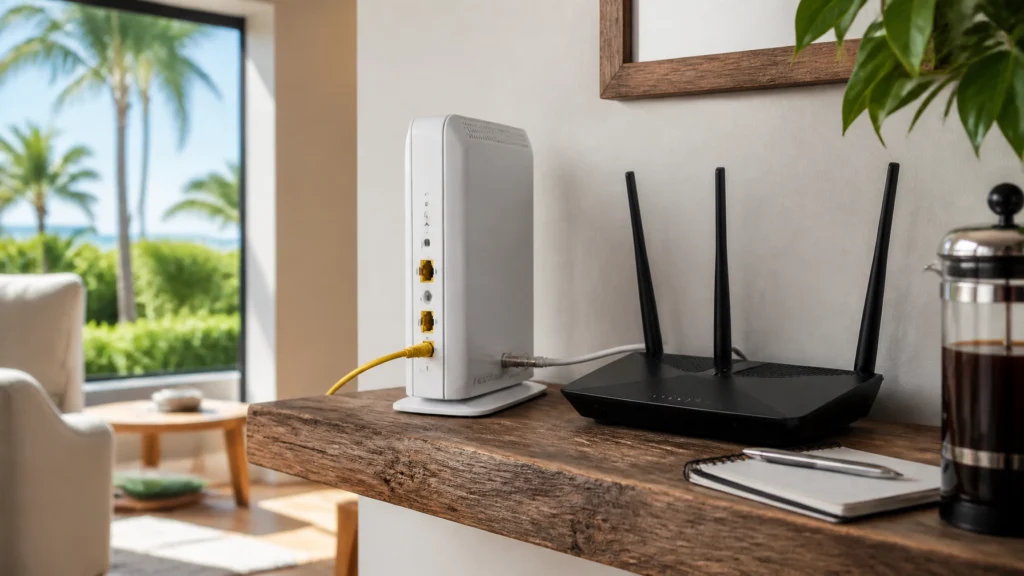
At FindASpy headquarters, Tracer opened a new router’s setup card and immediately regretted it.
The factory network name was so long that, after being copied onto a sticky note, it wrapped around his coffee mug. By the time the note came back around, the Wi-Fi name looked less like a network and more like a ransom message from a very organized appliance.
Tracer stared at it, took a sip of pour-over coffee, and said, “If your network name needs two lines, a magnifying glass, and a witness, it is time for a lockdown.”
Usually, I’ll give you upcoming breaches and scams. But this week, I’m pulling a few personal hacks and social-engineering defenses out of my notebook : practical ways to create time, spot pressure, and protect yourself when a situation feels wrong.
Today’s hack is simple: take control of the box that connects your home to the outside world.
The modem connects your home to your internet service provider, or ISP. For cable internet, it communicates through the coaxial cable coming into your home.
The router directs traffic between the internet and your phones, computers, cameras, televisions, printers, and smart-home devices. It also manages Wi-Fi, passwords, guest access, and important security controls.
Many ISPs provide a single gateway, which combines the modem and router in one box. Gateways are convenient. They may include technical support, automatic updates, security monitoring, and voice-service support.
However, purchasing your own compatible modem and a separate router can give your household more direct control over:
This does not mean customer-owned equipment automatically makes you safer. The security benefit comes from control, separation, and proper setup. Compare your ISP’s equipment costs, update policies, support, security features, and voice-service requirements before making a change.
You can purchase a modem and router through Amazon or another reputable authorized seller. Before buying, use your ISP’s official compatibility list.
Check all of the following:
Fiber customers may use an ISP-provided optical network terminal, or ONT. DSL customers may need different equipment. Do not purchase a cable modem until your ISP confirms what your service requires.
Buy new from the manufacturer or an authorized seller when possible. Inspect the packaging, verify the model and serial number, and be cautious with equipment listed as used or refurbished. If you do use previously owned equipment, perform a factory reset before setup and confirm that it is not tied to another account.

Do not connect every device immediately. Set up the network first, then invite the household devices in one at a time.
Before connecting anything, photograph the modem’s model and serial information. Confirm that the model appears on your ISP’s official compatibility list.
Connect the modem to the coaxial cable or service line as directed. Activate it through the ISP’s official website, app, or published phone number.
Do not follow activation links from unsolicited texts, emails, or phone calls. Those messages may be designed to steal your account credentials.
Run an Ethernet cable from the modem to the router’s WAN or Internet port. WAN means the connection facing the outside internet.
If your modem is also a router, ask the ISP or a qualified technician whether it supports bridge mode. Bridge mode turns off the modem’s routing function so that only your separate router manages the home network.
This can prevent double NAT, a situation where two devices both try to manage traffic and cause connection problems. Do not change this setting casually if you use ISP voice service or special features.
When possible, use a wired connection to open the manufacturer’s official setup app or printed router address.
Change the router administrator password immediately.
The administrator password controls the router itself. It is not the same as the Wi-Fi password that family members enter to connect their phones.
Use a long, unique administrator password and store it in a password manager. Never keep default administrator credentials.
Firmware is the built-in software that runs the router.
Install available updates before adding smart devices. Enable automatic security updates if the router supports them, and verify how long the manufacturer promises to provide updates.
A router that never receives security fixes becomes a permanent weak point in the home.
Set Wi-Fi security to WPA3-Personal.
WPA3 is a current protection standard that encrypts Wi-Fi traffic and helps prevent outsiders from reading it. If an older device cannot connect, use WPA2-Personal with AES or a supported WPA3/WPA2 transition mode.
Do not use WEP, older WPA, TKIP, or an open network without encryption.
The SSID is simply the Wi-Fi network name.
Change the default SSID. Do not use your surname, street address, apartment number, phone number, router brand, or model number. Choose a neutral name that does not identify your household.
Create a unique Wi-Fi passphrase of at least 16 characters, or use several unrelated words. Never reuse an email, banking, or work password.
The common comparison is 2.4 GHz versus 5 GHz, not 2.5 GHz versus 5.0 GHz.
If your router offers Smart Connect or band steering, it may automatically place devices on the most suitable band. If troubleshooting becomes difficult, give the bands separate names so you can tell which network each device is using.
Security matters on every band.

After the basic setup, complete these five protections:
Create a Guest Wi-Fi network. Give visitors a different password. When supported, place smart televisions, bulbs, plugs, cameras, and other IoT devices there. IoT means internet-connected household devices. Guest isolation helps prevent those devices from freely reaching personal computers and files.
Disable WPS. WPS, or Wi-Fi Protected Setup, is a quick-connect feature. It is convenient, but disabling it removes an unnecessary access method.
Disable remote administration. Remote administration allows someone to change router settings from outside your home. Turn it off unless you have a specific, trusted reason to use it.
Disable UPnP unless needed. UPnP, or Universal Plug and Play, lets devices request automatic openings through the router. It can make setup easier, but unnecessary convenience expands the attack surface. Also disable unused USB sharing and services.
Keep the firewall enabled. A firewall is a filter that blocks unwanted inbound network traffic. Review the connected-device list monthly. Confirm unknown names before removing them; a device may be a printer, television, phone, appliance, or camera with an unfamiliar label.

On many Nighthawk models, open the official router app or web interface. Go to wireless settings and turn off Enable SSID Broadcast or select Hide SSID for each band.
Broadcast means the router publicly announces the Wi-Fi name so nearby devices can discover it.
When the SSID is hidden, devices must be given the exact network name manually. But remember: hiding the SSID is not encryption. It does not make the network invisible to a determined person. Some devices may still reveal network information, and hidden networks can create connection and troubleshooting problems.
Think of SSID hiding as a small privacy measure: not a locked door. WPA3, a strong passphrase, updated firmware, and disabled unnecessary services matter much more.
This is the kind of activity security professionals describe as wardriving: driving or walking around with wireless equipment to locate and map nearby Wi-Fi networks and their security signals.
Place the router in a central, elevated location away from exterior windows and doors when practical. This helps reduce how useful the signal is from the street. Do not place it inside a metal cabinet or sacrifice reliable coverage. Radio signals cannot be guaranteed to stop at your property line.
The real defense is strong encryption and secure settings. Placement is an additional layer.
Tracer’s coffee mug stopped being funny when he visited an older couple whose router still used the factory network name and the password printed on the device.
The network name revealed the equipment brand. The printed password was still active. Their laptops, cameras, television, and smart speakers all shared one network.
Tracer explained the difference between the Wi-Fi password and administrator password, updated the firmware, enabled WPA3, created a guest network, and moved the router away from the front window.
The couple did not need a computer science degree. They needed a controlled checklist and the patience to verify each setting.
Tracer’s Pick is the NETGEAR Nighthawk family.
Readers should choose a current model based on features and ISP compatibility. When researching before you buy, you can enter in the exact Nighthawk model on the manufacturer’s support pages and compare the specifications, supported Wi-Fi bands, security features, ports, update support, and app options. Not every Nighthawk model includes identical features, ranges, or performance, and the separate modem still needs to match your ISP’s approved compatibility list.
A modem connects your home to the internet. A router decides how that connection is shared. Treat the router like a security gatekeeper, not a disposable box.
If you buy your own equipment, do it for control and separation. Confirm compatibility first. Configure it before connecting devices. Review it every month.
Look at your router today.
Is the administrator password still the default? Is WPS enabled? Are visitors and smart devices sharing the same network as your personal computer? Is the router sitting directly beside a front window?
Write down what you find. Then change one setting at a time.
Tracer’s next notebook page asks a sharper question: if an unknown device appears on your network, how do you determine whether it is a real household device, an old connection, or something that deserves a professional look?
Stop before clicking unexpected links or changing settings you do not understand. Independently verify instructions through your ISP or the manufacturer’s official website. If you need help, ask someone you trust to sit with you while you work.
FindASpy provides privacy and security guidance, professional services, and counter-surveillance products. Learn more about the team through About Us.
Disclaimer: The stories Tracer shares are based on real scams and security threats actively targeting our community. While the names and specific scenarios are crafted to protect identities, these tactics are a matter of when, not if. Tracer brings these to you fresh — so you see it here before it shows up at your door.
What kind of internet service do you use: cable, fiber, DSL, or something else? Which State are you reading from? Have you purchased your own modem and router, or are you still using an ISP gateway?
Do you keep your router near a window? Have you ever reviewed the connected-device list? What setting would you like Tracer to explain in plain language next?
Tracer reads all posts.
If you have found a suspicious device, network setup, or hidden gadget, share it with the community by clicking here.
For personal guidance, contact Patricia at 321-342-0040 or (352) 241-7492.
Sterling Reed, known to FindASpy readers as “Tracer,” is a cybersecurity engineer, digital investigator, consumer cybersecurity contributor, and founder of FindASpy.com in Clermont, Florida.
Learn more about Sterling Reed, his professional background, credentials, and published cybersecurity work →
Your vote helps determine FindASpy Insider’s Readers’ Top Picks. One rating is allowed per reader for each article.
Today’s Coffee Conversation
Tracer shares cybersecurity stories, scam alerts, privacy tips, and investigative insights. Pull up a chair, share your experience, and help shape tomorrow’s discussion.