

Morning Coffee with Tracer
At FindASpy headquarters, the automatic entrance doors open for anyone within about four feet of them.
They greet people walking past on the sidewalk. They welcomed a delivery cart that came in and left without stopping. Once, they opened for a very confident golden retriever on a leash.
Tracer finds this philosophically fitting for the article he is about to write. The building manager does not.
His coffee this morning is a ristretto, drunk standing at the counter while he watches the doors open for a leaf. Then a client arrives. She is traveling for two weeks and expects to use a hotel business center, a library computer, and occasionally a borrowed phone.
Her question is simple:
“How do I use those devices without leaving my information behind?”
The doors at headquarters open for everyone. So does much of what we touch online. This article is about closing the door behind you.
Awareness and scam disclaimer: Public computers, borrowed phones, shared printers, public Wi-Fi, and charging ports are not automatically dangerous. They are simply outside your control. Monitoring may be legitimate, malicious, or impossible for you to verify. Treat this guidance as a way to reduce exposure, not as a guarantee that a device or network is private. This content is guidance only. If you are in immediate danger, if a crime is in progress, or if your safety is at risk, stop reading and call 911.
Discretion online does not mean hiding from the law or doing something wrong. It means arriving at a device that is not yours, using it carefully, and leaving it as though you were never there.
Keep this refrain with you:
Assume that anything you type on a device you do not own can be seen by someone else, and that anything you leave behind can be copied.
Two facts make this rule practical.
First, the device owner or the next person using it may see what the last user did. Browsing history, downloads, recent documents, printer queues, and temporary folders may remain by default.
Second, you cannot see everything running on a device you do not control. A public computer may have monitoring, keylogging, session recording, or screen-capture software installed by a library, hotel, or employer. A borrowed phone may contain applications or settings you cannot inspect.
That is not paranoia. Some monitoring is ordinary and legal. It is simply a reason to limit what you do.
A threat model is a plain description of what you are trying to protect and from whom. Your threat model determines how much effort is reasonable.
If it can move money or reveal your identity, do not do it on someone else’s device. Full stop.
Before sitting down, look at the device.
Check behind and beside the computer for anything attached that should not be there. Look for an unexplained USB device, an extra adapter, or a small connector between the keyboard cable and the computer.
A hardware keylogger is a small physical device that records keystrokes. It can hide between a keyboard and a computer. These devices are rare, but real. If something unusual is plugged into a public workstation, choose another one and notify staff.
Look around and above you, too. Check whether a security camera or a phone on a stand has a clear view of the keyboard and screen.
Choose a seat with your back to a wall when possible. Angle the screen away from the room and away from the person behind you. Shoulder surfing means someone simply reads your screen or watches your hands.
A privacy filter is a thin screen overlay that narrows the viewing angle. It makes the display easier to read directly in front of you and harder for people beside you to see. For a laptop, a privacy filter is often more useful than another piece of security software.
Use the ATM habit here, too: cover the keyboard with your free hand, and notice anyone standing closer than a stranger needs to.

Use this procedure at a library, hotel business center, airport kiosk, or friend’s laptop.
Ask whether the task belongs there. If it involves banking, medical information, taxes, payment cards, cryptocurrency, password managers, or your Social Security number, wait for your own device.
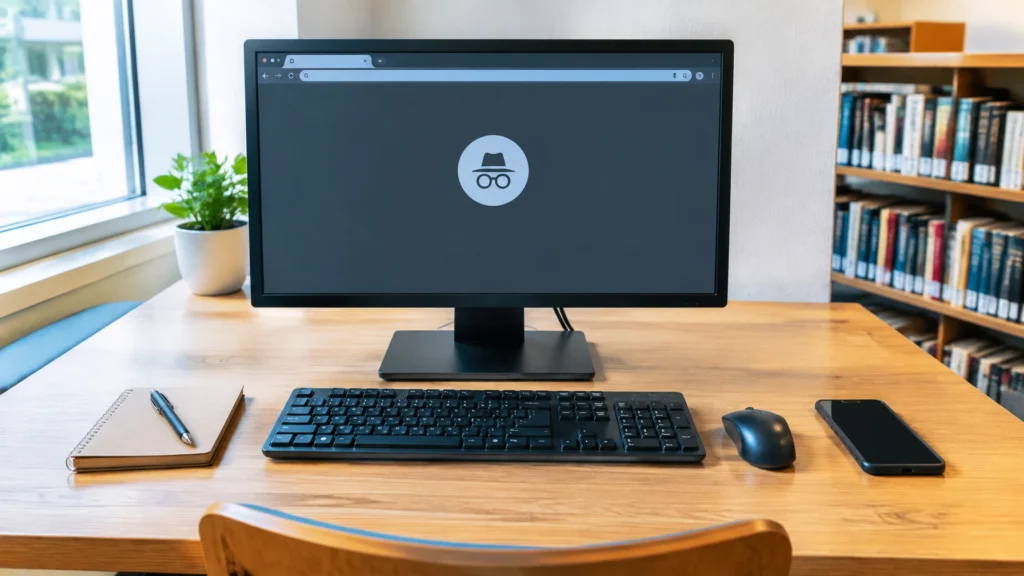
Open a private or incognito window. Private mode usually stops the device from saving local history, cookies, and form entries after the window closes. It does not hide your activity from the library’s network, the hotel’s system, the internet provider, the websites you visit, or software installed on the machine. Private mode is a housekeeping tool, not a shield.
Decline every saving prompt. Do not save a password, enable “remember me,” or accept autofill for a card. Saved information may live in a browser profile that the next user can open.
Do not use saved-password features. Never let the browser fill your credentials. Avoid allowing a password manager to sign in fully on a shared machine. If you have no alternative, enter the master password by hand, use only what is necessary, and sign out of the password manager before leaving.
Use two-factor authentication in advance. Two-factor authentication is a second proof that you are you, usually a code sent to your own phone. Make sure the code goes to a device you control, not an email account you cannot safely open.
If you must access email, do it last. Email is the master key to many other accounts because password-reset links arrive there. A stolen email session may lead to everything else.
Sign out of every account. Use the account’s sign-out button. Closing a tab is not enough. The next user may open the browser and find your session active.
Clear browsing data. Use the browser’s clear-history function and select history, cookies, cached files, and form data. Some browsers finish clearing a private session only after every private window is closed. In that case, sign out, close the windows, and then check again.
Check the downloads folder and desktop. A download folder is where files such as PDFs, boarding passes, and documents often land. Delete files you created. Check the desktop and recycle bin as well. Remember that ordinary deletion does not guarantee secure erasure.
Handle printing immediately. Print jobs may sit in a shared queue. The document may also remain in the computer’s print spooler or the printer’s memory. Collect your pages within a minute or two and check the printer display for queued jobs. Do not print sensitive documents on equipment you do not control.
Close the browser and sign out of the computer. If the machine offers a guest or shared session, use it. Leave the workstation at the login screen, not at a personal desktop.
Take everything with you. Remove your papers, phone, and USB drive. Avoid inserting a personal USB drive into an unfamiliar computer because the computer may write malware to it or record its contents. When you need to move a file, use a service you control and sign out afterward.
Change any sensitive password later. If you had to use a sensitive account, change that password from your own trusted device. The copy you left behind may not be yours to delete.
A borrowed phone is usually more difficult to use safely than a shared computer. You cannot see all its applications, operating-system settings, accessibility services, screen-recording tools, or notification behavior.
An accessibility service is a phone feature designed to help people interact with the device. Some services can read screen contents or control parts of the phone. You cannot know whether one is active unless you control the device.
Use these rules:
Do not type a password into a phone you do not own. Not your email password. Not your bank password. Not your social-media password. The keyboard may keep a dictionary, sync predictions, or expose what you type to another application.
Ask the owner to place the call for you. They can dial the number, hand you the connected phone, and remain beside you. Your fingers never need to touch the keypad.
If you must type, use a private browser window. Never install an application and never sign in to an account you care about. App installation is a trap when someone else’s device is involved. Never let a helpful stranger install anything on your phone, either.
Keep control of your unlocked phone. Say, “I’ll hold it. You tell me what to type.” Read information aloud if necessary. This is normal and reasonable.
Never use another person’s phone for money. Do not make a transfer, refill an account, buy a ticket, make a deposit, or enter payment information.
Return the phone locked. Turn off the screen before handing it back.
Treat a stranger’s phone as hostile. A stranger who offers to help with a lost phone, locked account, or password reset may use the opportunity to obtain a code or install remote-access software. A stranger’s helpfulness is not a technical credential.
Public Wi-Fi deserves caution, but not panic. There are two separate risks.
An evil twin is a fake Wi-Fi hotspot named almost like the real one. A café called “Harbor Coffee” might have a fake network called “Harbor Coffee Free,” or a criminal may add one extra letter to a hotel or airport network name.
Ask staff for the exact network name and password. Do not join the strongest signal simply because it appears first.
Be suspicious of any network that asks for:
Most reputable websites use HTTPS, which encrypts the content you send between your device and the website. A network operator usually cannot read the contents of your messages or password when HTTPS is working properly.
However, the network may still see which websites you visit. It may also see the address of pages you open. That makes public Wi-Fi reasonable for reading the news and a poor choice for sensitive activity.
Use these habits:

A charging cable is not always just a cable.
USB cables contain wires for power and wires for data. A manufactured cable may also contain a small electronic chip. That means a cable can look ordinary while still carrying data.
Juice jacking means using a charging cable or public USB port to transfer data instead of only power. The most credible version is often not a mystery virus. It is a prompt asking whether your phone trusts the computer it is connected to, followed by someone tapping “Trust” without reading.
A data-blocking adapter is a small adapter that allows power through while physically blocking data wires.
Follow these rules:

Before walking away from any device you do not own:
Leave the device as you found it, and assume something remains anyway.
Sometimes the polite thing and the safe thing conflict. You are allowed to wait.
Try these scripts:
You can also offer to use your own phone on speaker, read a number aloud for someone else to dial, email a document instead of printing it, or wait until you have your own equipment.
A legitimate person never needs you to log in to a sensitive account on their device. Being asked to do so is the moment to stop.
Tracer walks the client to the door. It opens for her four feet early and stays open for eight full seconds, waiting for someone who never enters.
He looks at the leaf resting on the threshold.
“A system that opens for everyone is convenient,” he says, “right up until you want to be the only one inside.”
You cannot make a device you do not own private. You can make your visit brief, limited, and forgettable.
Then Tracer asks the building manager, once again, whether the sensor range can be shortened.
Before your next trip:
With the wording simple: Tracer's Pick is a reminder that you can enter in through the Community Finds page to browse unusual devices and privacy lessons shared by the community.
You can also browse the FindASpy product catalog for privacy and travel-security gear. No device replaces careful habits, but the right equipment can support them.
Next time, Tracer looks at the information that ordinary travel receipts, boarding passes, hotel key envelopes, and luggage tags reveal after the trip is over, and how to reduce that paper trail without creating a new digital one.
Community disclaimer: Please do not post passwords, account numbers, private addresses, travel details, or identifying information in the comments. Share only what you are comfortable making public. Follow the policies of every library, hotel, employer, airport, and other organization whose equipment or network you use.
What State are you from?
Have you ever used a public or borrowed device for something you later regretted? Which habit from this article will you adopt first: private browsing, signing out, turning off auto-join, hiding notification previews, carrying your own charging equipment, or something else?
Tracer reads all posts. If you have found a hidden gadget or unusual device, upload it for the community by clicking here.
Morning Coffee with Tracer
Sterling Reed "Tracer" is the steady voice behind Morning Coffee with Tracer, translating privacy, surveillance, and digital-risk issues into plain-language guidance for everyday people. His approach is practical, protective, and grounded in awareness, knowledge, and real-world protection.
Final disclaimer: This article is for educational content only and is not legal, technical, or security advice. Device settings, menu names, browser behavior, printer retention practices, network configuration, and cable standards change frequently and differ by device and organization, so verify current steps with the manufacturer or the organization that owns the equipment before acting. Using equipment you do not own may be governed by the policies of the library, hotel, employer, or other owner, and you must follow those policies and all applicable law. Do not attempt to defeat, disable, or tamper with monitoring or security systems on equipment you do not own. Nothing here guarantees that a device is free of monitoring or that a session cannot be recorded. If you are being followed, harassed, or surveilled, contact local law enforcement. If you are in immediate danger, call 911.
Your vote helps determine FindASpy Insider’s Readers’ Top Picks. One rating is allowed per reader for each article.
Today’s Coffee Conversation
Tracer shares cybersecurity stories, scam alerts, privacy tips, and investigative insights. Pull up a chair, share your experience, and help shape tomorrow’s discussion.