

Morning Coffee with Tracer
Scam Disclaimer: Screenshots, screen shares, emails, and website displays are not proof of payment, available funds, or account ownership. Always verify through your own account, your own app, or an independently sourced phone number. Guidance only: If you are in immediate danger, if a crime is in progress, or if your safety is at risk, stop reading and call 911.
At FindASpy headquarters, the side-entry badge reader has developed a small morning ritual. It flashes red once, rejects Tracer’s badge, and then accepts it on the second attempt as if nothing happened.
It has done this for three weeks.
Tracer has started saying, “Good morning,” back to it.
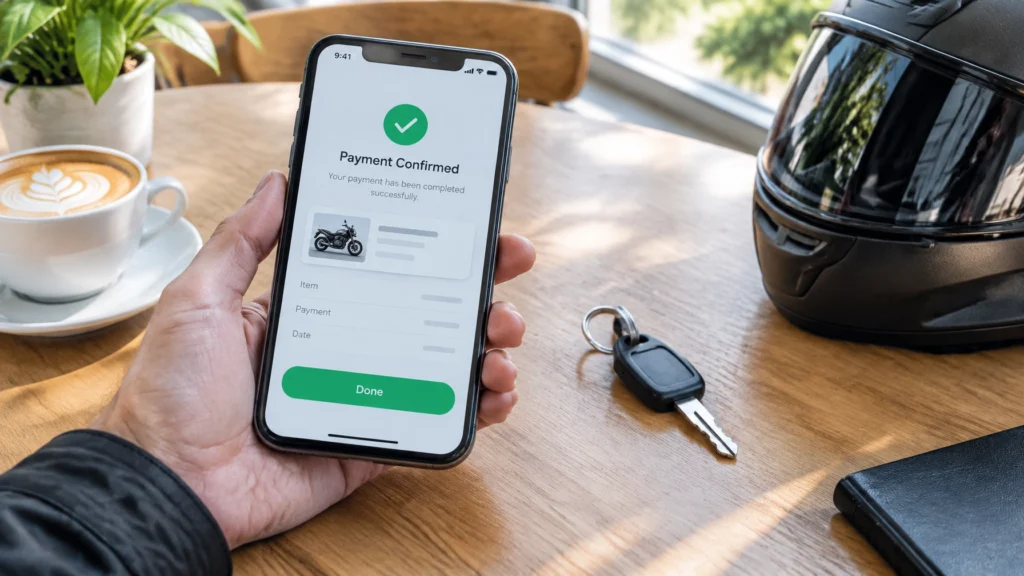
He is halfway through a cappuccino dusted with cinnamon when a man arrives holding up his phone. The screen says PAYMENT SENT. The man sold a motorcycle through a classifieds site. The motorcycle is gone. His bank account is not richer.
Tracer studies the screenshot, then asks one question:
“Can I see that in your own banking app?”
The man’s face falls.
That question is the beginning of today’s lesson.
Most web browsers include a feature called developer tools. Developer tools are built-in panels that website builders use to test, troubleshoot, and improve pages.
A person can open them by right-clicking a webpage and choosing Inspect. Depending on the browser, the same tools may open with F12 or Control-Shift-I.
From there, someone can temporarily change what appears on the screen:
These edits happen only inside that person’s browser session. Nothing is sent to the website’s server. The real website, account, and payment record remain unchanged. Reload the page, and the edits disappear.
Here is the cleanest way to remember it:
The fake page is not the weapon. The screenshot is.
The browser feature itself is legitimate. Website developers use it every day. The abuse begins when someone changes a page, captures the altered image, and presents it as evidence.
You can learn more about how developer tools work through Mozilla’s plain-language explanation.
Tracer’s plain rule is simple: if someone shows you money on a screen, refresh it.
That is the fastest way to catch the ordinary version of this trick because every local edit lives only in the browser’s temporary memory. Text that was changed, warnings that were hidden, balances and amounts that were inflated, and any defacing of the page all snap back to the real content the moment the screen is reloaded.
Here is what to do. Press the reload button or the refresh key and watch the page rebuild itself from the real source. A fake balance, a bogus “payment sent” message, or an invented account total often disappears and is replaced by the actual page.
That is the practical instruction: if anyone shows you money, a balance, a receipt, or a confirmation on a screen, ask them to refresh it in front of you. Better yet, ask them to hand you the device so you can refresh it yourself while they watch.
Honest pages survive a refresh. Edited pages do not.
There is one honest caveat. Refreshing defeats the ordinary version of this trick, but a determined and prepared fraudster can stage something more elaborate. So treat a refresh as a good instinct, not final proof. Your own bank, your own app, and a call to a number you found yourself remain the only reliable confirmation.
Also remember this: refreshing cannot undo a screenshot that was already taken and sent. That is why the screenshot itself is the evidence that matters. The page may tell the truth again after a reload, but the captured image is still what the scammer will try to use against your judgment.
The page may be authentic.
It may have the real website’s fonts, logo, layout, colors, and spacing because it is the real website rendered in a real browser. There may be no spelling mistake. There may be no suspicious link. The domain may even be correct.
The lie is what was changed for a moment and then photographed.
That defeats advice such as “check the URL,” “look for spelling errors,” and “hover over the link.” Those are useful defenses against fake websites. They do not prove that a screenshot accurately represents what the website’s system recorded.
A screenshot shows what appeared on a screen. It does not show what a bank, marketplace, payment processor, airline, hotel, or employer received.

People often ask whether Inspect can reveal a password hidden behind dots or asterisks.
Here is the precise answer.
A password field is a box with a setting that tells the browser to hide what is typed. Developer tools can change that setting so the characters appear. Many browsers also include a built-in show-password eye icon that reveals the same information with one click.
This does not pull a password out of thin air. It does not break into an account. It does not let a stranger remotely read the password on somebody else’s computer.
It reveals what is already on that screen: a password someone typed or one the browser autofilled.
The real risk appears when a device is accessible:
Protect yourself by locking your screen whenever you stand up. Never share your screen with an unsolicited caller. Do not give “tech support” remote control of your machine unless you initiated the contact through a verified number.
Avoid saving passwords in a browser on a shared computer. Use a password manager that requires its own master unlock. When finished, sign out completely instead of merely closing the tab.

A scammer using this trick can create a convincing picture of:
Some forms also perform checks only inside the browser before submission. Those checks are called client-side validation. In plain language, the browser decides whether a form looks acceptable before sending it.
A scammer can alter that local copy so it accepts information that the real system would reject. That does not mean the company received valid information. It means the screen was persuaded to look cooperative.
What the screen shows is not necessarily what the company’s system received.
A buyer sends a picture marked “payment sent.” The seller releases a motorcycle, phone, camera, or other valuable item. The payment never existed.
That is what happened to the visitor at headquarters.
A romance or investment scammer shares a screen showing a large portfolio balance. The number is not proof of an asset. It may simply be text changed in a browser.
A balance on a screen is a picture, not money.
A rental applicant, car buyer, or loan applicant presents an edited balance to appear financially secure. The recipient makes a decision based on an image instead of independently verified records.
A fake support agent shows a refund that was never sent, then claims too much money was returned. The victim is pressured to send the “difference” through gift cards, cryptocurrency, or a transfer.
“Let me show you the problem,” says the caller. During a screen share, the caller displays invented evidence of a virus, refund, locked account, or security issue.
Edited posts, messages, agreements, receipts, and invoices may be used in disputes, insurance claims, custody matters, or intimidation.
This is the use that worries Tracer most. It can damage a person’s life, not just a wallet.
A convincing onboarding page requests identification documents, tax information, banking details, or copies of licenses. The page looks official, but the person behind it is collecting sensitive information.
A page says the account is locked and opens a live chat or phone prompt. The “support” representative then requests login credentials, one-time codes, or remote access.
Using developer tools to fabricate a payment, receipt, balance, document, or piece of evidence is fraud and forgery.
It can be prosecuted. It can also be proven because the real system’s records, timestamps, account history, and transaction logs will contradict the picture.
FindASpy teaches people to recognize and defend against this misuse. We do not endorse using browser tools to deceive anyone.
Treat every screenshot as unverified. Money is real when it appears in your own account, viewed through your own banking app or payment dashboard.
Ask for live verification, then refresh. If someone shows money on a screen, ask them to open the service in their own app and refresh the page. A basic local edit often disappears when the page reloads because the altered words existed only in the browser’s temporary memory. This is a useful test, but a determined fraudster can prepare a more elaborate deception. Your own institution remains the reliable confirmation.
Use an independent channel. Call the bank, company, marketplace, or payment provider using a number you found yourself. Never use the phone number shown on the suspicious screen.
Use safer high-value payment methods. Meet at a bank for cash verification, use a trusted payment rail, or use a legitimate escrow service. Wait for funds to clear. Do not release an item because money was merely “shown.”
Train business staff. Screenshots are not proof of payment. Require cleared funds in the accounting system. Add a callback verification step for invoices and bank-detail changes. Never accept a website display as the company’s official record.
Slow down romance and investment decisions. Check registration, refuse pressure, and discuss the opportunity with someone you trust. A displayed balance is not independently verified wealth.
Lock devices and reject unknown screen shares. A caller who asks for remote access is asking to see and control the environment where passwords, banking pages, and personal files may be present.
Preserve evidence if you suspect deception. Keep messages, screenshots, emails, usernames, transaction details, and times. Contact your bank, the platform involved, law enforcement, and a licensed professional as appropriate.
You can demonstrate this without touching anyone’s account.
That is the entire lesson in one gesture: the page lied, and then it told the truth again.
Try it with a teenager, an older relative, or a coworker. Seeing the change happen makes the risk instantly understandable.
The most convincing lie on the internet may be a picture of something real that was edited for one second.
Your defense is not a better eye. It is a better rule:
Your own account. Your own app. Your own call to a number you found yourself.
Before your next sale, transfer, or online purchase:
Tracer’s Pick this week is a simple family exercise: demonstrate a harmless local webpage edit, reload it, and discuss what the screenshot failed to prove. You can enter in the current community giveaway through FindASpy Community Finds by sharing your own hidden gadget or privacy lesson.
Next time, Tracer looks at the warning signs that a “support” caller is trying to turn a normal computer problem into remote access to your private life.
Educational and legal disclaimer: This article explains how a publicly available browser feature is misused and how to defend against that misuse. It does not endorse or instruct anyone to commit fraud. This is not legal advice. Fraud, forgery, and computer-crime laws vary by jurisdiction; anyone who suspects a crime should contact law enforcement and a licensed professional. No screenshot, screen share, or website display should ever be treated as proof of funds or proof of payment. Browser features and menu names differ and may change over time.
Have you ever been shown a screenshot that you now suspect was edited? What State are you from? Have you ever refused to release an item until money appeared in your own account? What verification rule would you add to this list, and what do you drink with your morning coffee?
Tracer reads all posts.
To share a hidden gadget from your home, vehicle, office, or daily routine, click here.
Morning Coffee with Tracer
Sterling Reed, known as “Tracer,” writes about practical privacy, surveillance awareness, and everyday security habits for the FindASpy community.
Your vote helps determine FindASpy Insider’s Readers’ Top Picks. One rating is allowed per reader for each article.
Today’s Coffee Conversation
Tracer shares cybersecurity stories, scam alerts, privacy tips, and investigative insights. Pull up a chair, share your experience, and help shape tomorrow’s discussion.